Dev tooling
Command palette
Navigate anywhere and trigger actions instantly without reaching for the mouse.
On this page6 sections
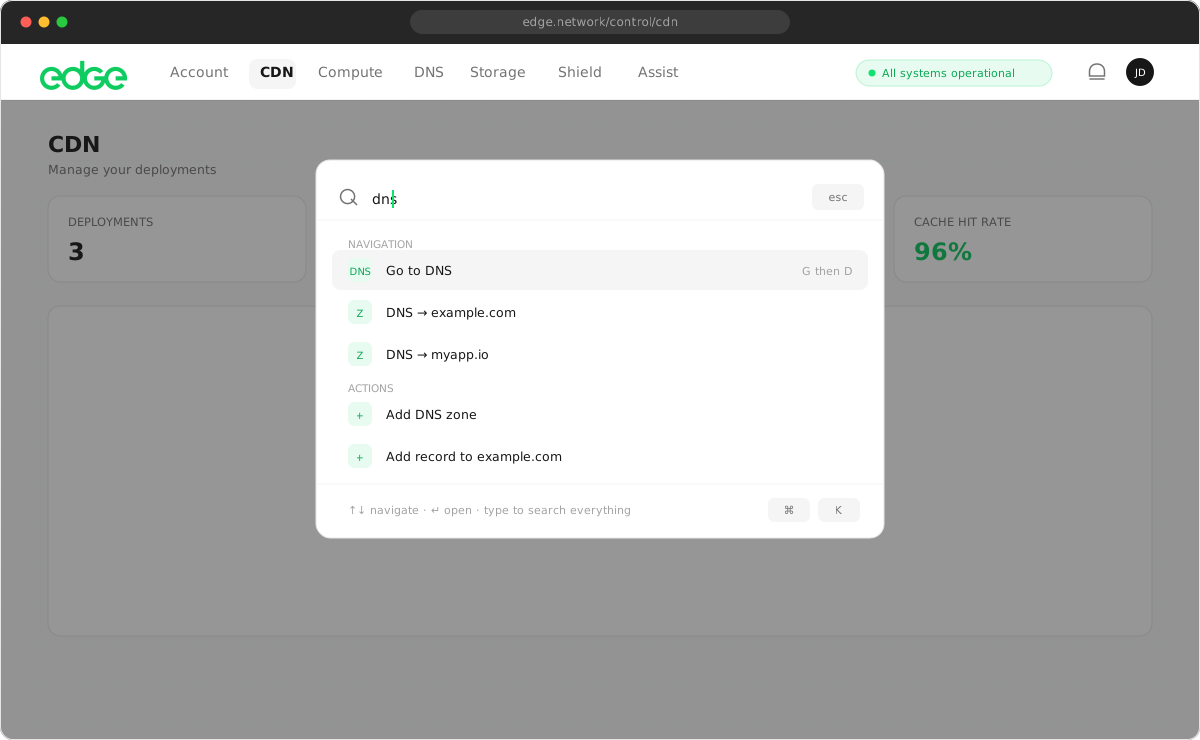
Opening the command palette#
The command palette can be opened from anywhere in the console using:
/(forward slash): when not focused on a text input⌘ K(Cmd+K / Ctrl+K): works anywhere, even in text inputs
Press Esc to close the palette at any time.
Contextual quick actions#
The command palette is context-aware. The quick actions shown at the top are relevant to the section you’re currently viewing:
| Current section | Quick actions |
|---|---|
| CDN | Deploy CDN |
| Compute | Create Virtual Machine, Manage SSH Keys, Manage Firewall Rules |
| DNS | Create DNS Zone |
| Storage | Create Storage Bucket, Manage Storage Keys, Storage Connection Info |
| Account | Open Support Ticket, Manage API Keys, Manage Team, Billing, Settings, Alerts |
Actions from other sections are available under Other Actions further down the list.
Navigation#
Jump to any section of the console instantly:
- Overview
- CDN
- Compute
- DNS
- Storage
- Activity
- Usage
- Support
Search#
Start typing to search across all commands and actions. The search matches against:
- Command names: “Create Virtual Machine”, “Deploy CDN”, etc.
- Keywords: “vm”, “server”, “bucket”, “domain”, “firewall”, etc.
- Sections: “compute”, “storage”, “dns”, etc.
Keyboard navigation#
Navigate the command palette entirely with your keyboard:
| Key | Action |
|---|---|
↑ ↓ |
Move the selection up/down |
Enter |
Execute the selected command |
Esc |
Close the command palette |
/ |
Open the command palette |
⌘ K |
Toggle the command palette (works in text inputs too) |
Tips#
- Quick navigation: press
/, type “cdn” and pressEnterto jump straight to CDN. - Fuzzy matching: search terms don’t need to be exact. Typing “vm” matches “Create Virtual Machine”.
- Mouse or keyboard: you can click commands directly or navigate with the arrow keys. Hovering also updates the selection.
Something unclear or out of date? Tell us