Storage
Access keys
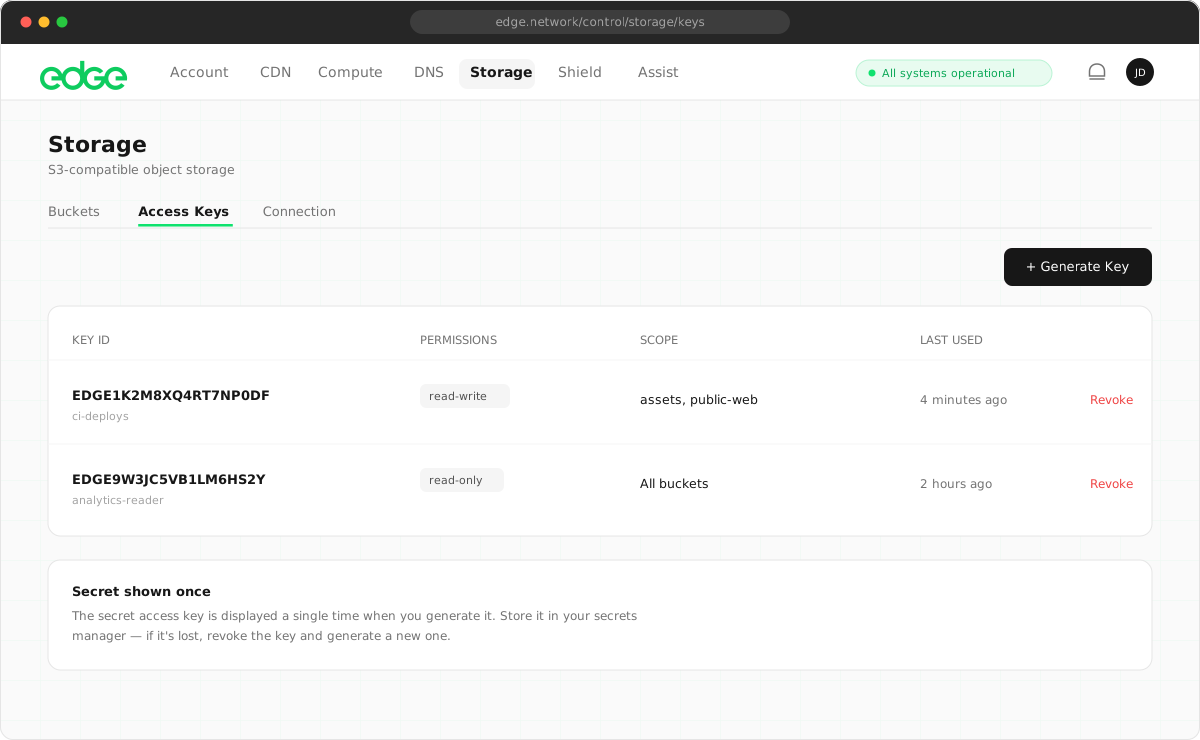
Access keys authenticate your applications with Edge Storage. Each key consists of an Access Key ID and a Secret Access Key.
On this page6 sections
Key components#
- Access Key ID: a unique identifier for your key. Safe to store in configuration files. Example:
EDGE1234567890ABCDEF - Secret Access Key: a secret token used to sign requests. Keep this secure. Example:
wJalrXUtnFEMI/K7MDENG...
Generate a new key#
- Navigate to Storage → Access Keys.
- Click Generate New Key.
- Copy both the Access Key ID and Secret Access Key.
- Store them securely (for example, in environment variables or a secrets manager).
Permissions and bucket scoping#
When creating a key, you can restrict its permissions and scope it to specific buckets. This follows the principle of least privilege: give each key only the access it needs.
Permissions#
- Read & Write: full access to upload, download and delete objects, and to create and delete buckets. Use for applications that manage content.
- Read Only: download and list only. Cannot upload, delete or modify objects. Use for analytics, reporting or public-facing read access.
Bucket scope#
By default, keys can access all buckets in the account. You can restrict a key to one or more specific buckets. A scoped key cannot see, access or modify any bucket outside its scope.
- All buckets: no scope set. The key works with any bucket. This is the default.
- Specific buckets: the key only works with the selected buckets. Requests to other buckets return
AccessDenied.
Security best practices#
- Use environment variables: never hardcode credentials in your source code. Use environment variables or a secrets manager.
- Rotate keys regularly: create new keys periodically and delete old ones. This limits exposure if a key is compromised.
- One key per application: use separate keys for different applications or environments. This makes it easy to revoke access if needed.
- Separate dev and production: use different keys (and ideally different buckets) for development and production environments.
Delete a key#
To revoke access for a key:
- Go to Storage → Access Keys.
- Find the key you want to delete.
- Click the delete button and confirm.
The key is revoked immediately. Any applications using this key will no longer be able to authenticate.
Example: using environment variables#
Set the variables in your shell:
Terminal
export AWS_ACCESS_KEY_ID="your-access-key-id"
export AWS_SECRET_ACCESS_KEY="your-secret-access-key"
export AWS_ENDPOINT_URL="https://storage.edge.network"
Then use them in your code:
JavaScript
import { S3Client } from '@aws-sdk/client-s3'

// SDK automatically picks up environment variables
const client = new S3Client({
  endpoint: process.env.AWS_ENDPOINT_URL,
  region: 'us-east-1',
  forcePathStyle: true
})Something unclear or out of date? Tell us