Account security
Two-factor authentication
Add an extra layer of security to your account with TOTP-based 2FA.
On this page7 sections
Overview#
Two-factor authentication (2FA) requires both your password and a time-based one-time password (TOTP) from your authenticator app to sign in. Even if your password is compromised, attackers cannot access your account without the second factor.
- Works with OAuth: 2FA is enforced even when signing in with Google or GitHub.
- Recovery codes: Backup codes ensure you’re never locked out of your account.
- Industry standard: TOTP-based, compatible with all major authenticator apps.
Compatible authenticator apps#
Any TOTP-compatible authenticator app will work. Popular options include:
- Google Authenticator: Available for iOS and Android
- Authy: Cross-device sync and desktop app
- 1Password: Integrated password manager with TOTP
- Microsoft Authenticator: Works with Microsoft accounts too
- Bitwarden: Open-source password manager with TOTP
Enabling two-factor authentication#
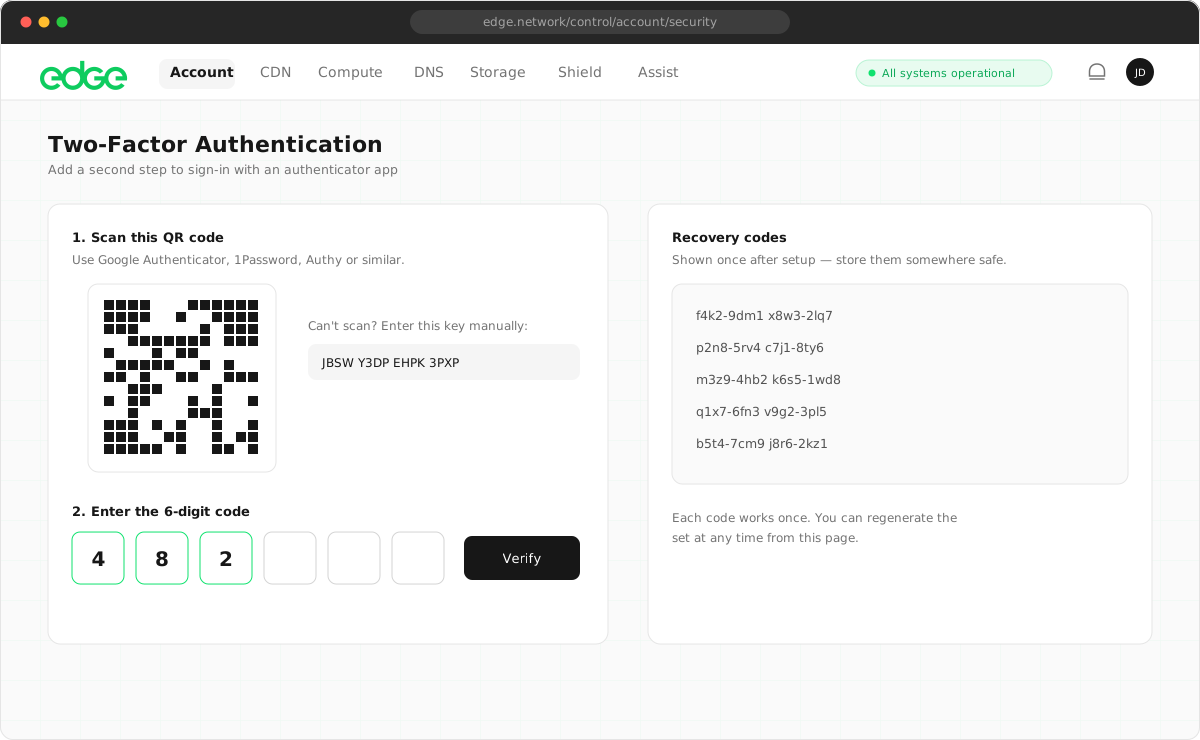
- Go to Settings → Security in your console.
- Find the Two-Factor Authentication section and click Enable.
- Scan the QR code with your authenticator app (or enter the secret manually).
- Enter the 6-digit code from your app to verify.
- Save your recovery codes in a secure location.
Signing in with 2FA enabled#
Once 2FA is enabled, the sign-in process requires an additional step:
- Enter your email and password (or sign in with Google/GitHub).
- You’ll be prompted for your 6-digit authentication code.
- Open your authenticator app and enter the current code.
- You’re now signed in.
The authentication code changes every 30 seconds. If a code doesn’t work, wait for the next one and try again.
Recovery codes#
When you enable 2FA, you’ll receive a set of recovery codes. Each code can only be used once and allows you to access your account if you lose your authenticator device.
Best practices#
- Store recovery codes in a password manager or secure vault
- Keep a printed copy in a secure physical location
- Never share recovery codes with anyone
- Generate new codes if you suspect they’ve been compromised
Generating new recovery codes#
If you’ve used most of your recovery codes or suspect they’ve been compromised, you can generate a new set:
- Go to Settings → Security.
- In the 2FA section, you’ll see how many recovery codes remain.
- Click to generate new codes (requires your current 2FA code).
Disabling two-factor authentication#
If you need to disable 2FA (not recommended):
- Go to Settings → Security.
- Click Disable 2FA.
- Enter your current authentication code or a recovery code to confirm.
Troubleshooting#
Code not accepted#
TOTP codes are time-based. Ensure your device’s clock is accurate. Most authenticator apps handle this automatically, but if you’re having issues, check your device’s time settings.
Lost authenticator device#
Use one of your recovery codes to sign in. Once signed in, you can disable 2FA and set it up again with your new device.
Lost device and recovery codes#
Contact support. You’ll need to verify your identity before we can help recover your account. This process may take several business days.
Something unclear or out of date? Tell us