Storage
Buckets
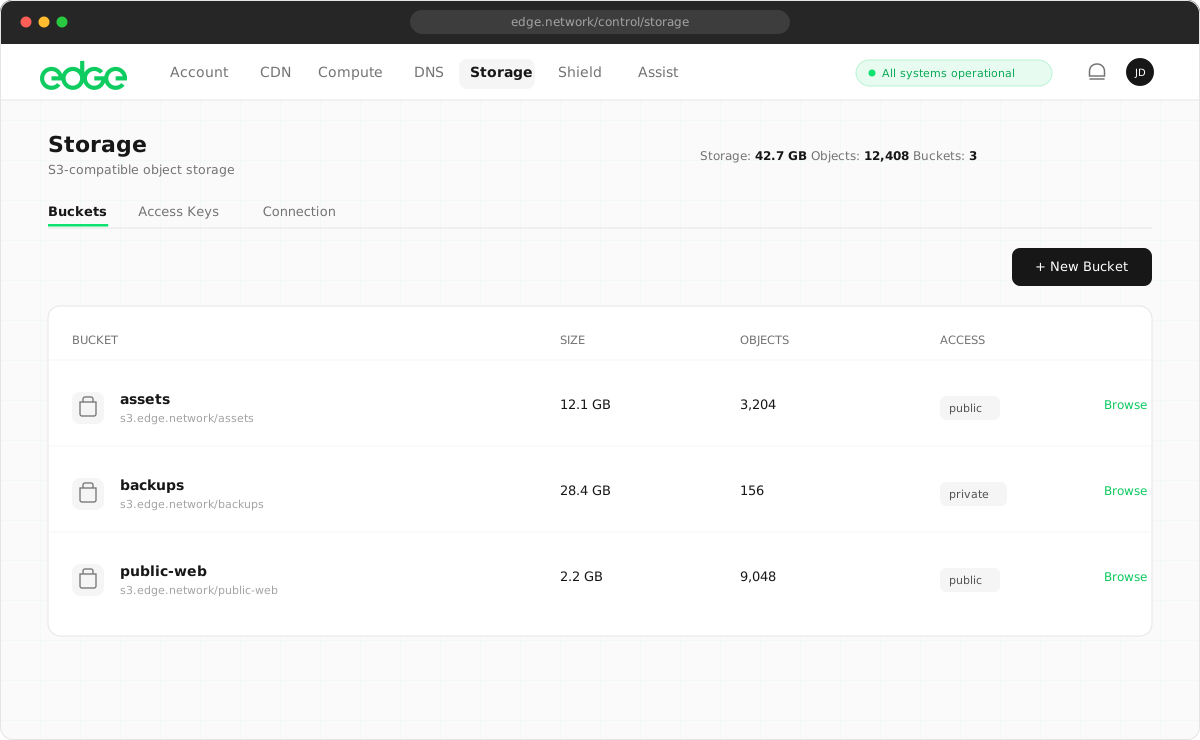
Buckets are containers for your objects. Each bucket has a unique name within your account.
On this page7 sections
Bucket naming rules#
- 3–63 characters long
- Lowercase letters, numbers and hyphens only
- Must start and end with a letter or number
- Cannot contain consecutive hyphens
- Unique within your account
Create a bucket#
In the console, navigate to Storage → Buckets and click Create Bucket. Enter a name and click create.
To create a bucket from the command line or your code, use the AWS CLI or the SDK:
aws --profile edge --endpoint-url https://storage.edge.network \
s3 mb s3://my-new-bucketimport { S3Client, CreateBucketCommand } from '@aws-sdk/client-s3'
const client = new S3Client({
endpoint: 'https://storage.edge.network',
region: 'us-east-1',
forcePathStyle: true,
credentials: {
accessKeyId: 'YOUR_ACCESS_KEY',
secretAccessKey: 'YOUR_SECRET_KEY'
}
})
await client.send(new CreateBucketCommand({
Bucket: 'my-new-bucket'
}))List buckets#
aws --profile edge --endpoint-url https://storage.edge.network s3 ls2025-01-15 09:00:00 assets
2025-02-01 14:30:00 backups
2025-02-10 11:15:00 uploadsDelete a bucket#
A bucket must be empty before it can be deleted. Empty it first, then delete it:
# Delete all objects first
aws --profile edge --endpoint-url https://storage.edge.network \
    s3 rm s3://my-bucket --recursive

# Then delete the bucket
aws --profile edge --endpoint-url https://storage.edge.network \
s3 rb s3://my-bucketBucket statistics#
Each bucket tracks storage usage automatically:
| Metric | Description |
|---|---|
storage_bytes |
Total size of all objects in bytes |
object_count |
Number of objects in the bucket |
created_at |
When the bucket was created |
Lifecycle rules#
Lifecycle rules automatically delete objects older than a specified number of days. Useful for temporary uploads, log files, build artefacts and session data.
Creating a rule#
- Open a bucket and navigate to Settings.
- Click Add Rule.
- Set the number of days after which objects should be deleted.
- Optionally set a prefix filter to only target objects with a specific path prefix (for example
logs/ortmp/).
How it works#
Rules are evaluated hourly. Objects whose last modified time exceeds the expiry threshold are deleted automatically.
Prefix filters let you target specific folders. A rule with prefix logs/ only deletes objects under that path.
You can have multiple rules per bucket. For example: delete tmp/ after 1 day and logs/ after 30 days.
Lifecycle API#
GET /api/storage/buckets/:name/lifecycle: list rules for a bucket.POST /api/storage/buckets/:name/lifecycle: create a rule, for example{ "expire_days": 30, "prefix": "logs/" }.DELETE /api/storage/buckets/:name/lifecycle/:ruleId: delete a rule.
Public buckets#
Buckets can be made public, allowing anyone to access objects via a direct URL without authentication.
Enabling public access#
- Open a bucket and navigate to Settings.
- Click Make Public.
- Copy the public base URL.
Objects are then accessible at:
https://storage.edge.network/_public/{customerId}/{bucket}/{object-key}- Public: GET and HEAD requests require no authentication. CORS headers are included for browser access.
- Private (default): all requests require S3 authentication or a presigned URL. This is the default for all new buckets.
Public access API#
PATCH /api/storage/buckets/:name/public: toggle public access, for example{ "is_public": true }.
Something unclear or out of date? Tell us