Getting started
Add your first domain
This guide walks you through adding a domain to Edge DNS and verifying ownership.
On this page5 sections
Prerequisites#
- An Edge Network account (sign up here)
- A domain name you own or manage
- Access to your domain registrar (GoDaddy, Namecheap, Cloudflare, etc.)
Set up your domain#
1. Create a DNS zone#
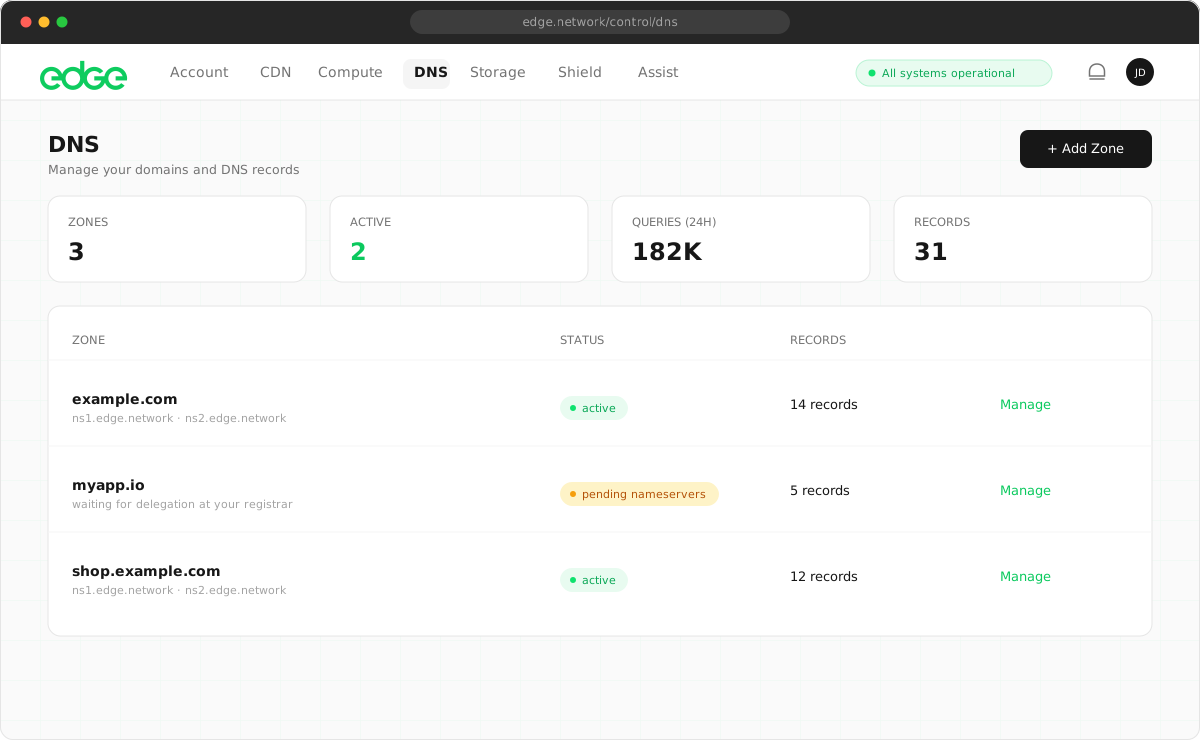
A zone represents your domain in Edge DNS. Each domain you want to manage needs its own zone.
- Navigate to DNS in the sidebar.
- Click Add Zone.
- Enter your domain name (e.g.
example.com). - Click Create Zone.
2. Note your unique nameservers#
After creating your zone, you’ll be shown your unique Edge nameservers. These are specific to your account and must be used for all domains.
Your nameservers will look like this:
ns1-abc123.edge.network
ns2-abc123.edge.network
The abc123 part is unique to your account.
3. Update your domain registrar#
Log in to your domain registrar and update the nameservers for your domain.
Common registrars:
- GoDaddy: My Products → Domain → Manage → Nameservers → Change
- Namecheap: Domain List → Manage → Nameservers → Custom DNS
- Cloudflare: Domains → Manage → Update DNS configuration
- Google Domains: DNS → Name servers → Use custom name servers
4. Verify nameservers#
Once you’ve updated your registrar, verify the change in the Edge console.
- Return to your zone in the Edge console.
- Click Verify Nameservers or Check Nameservers Now.
- Wait for confirmation (usually a few seconds).
If verification fails, the console shows the nameservers it currently detects. Wait a few more minutes for propagation and try again.
5. Add DNS records#
With your zone active, you can now add DNS records.
- Click the Records tab in your zone.
- Click Add Record.
- Select the record type (A, CNAME, MX, etc.).
- Enter the record details and click Add.
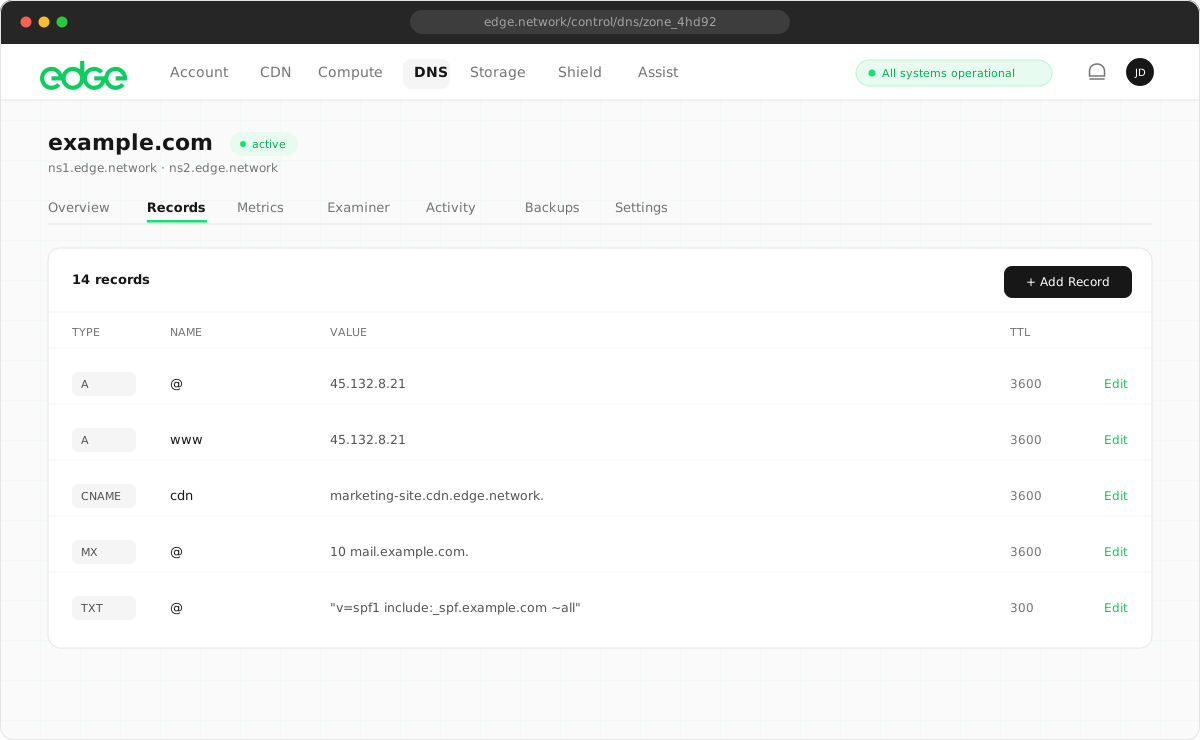
Common first records:
| Type | Name | Value |
|---|---|---|
A |
@ |
185.x.x.x |
CNAME |
www |
example.com |
MX |
@ |
mail.example.com (priority 10) |
Test your DNS#
Verify that your records are resolving correctly:
# Check A record
dig example.com A +short

# Check all records
dig example.com ANY

# Query Edge DNS directly
dig @ns1-abc123.edge.network example.com A
If you don’t have a domain#
If you don’t have a domain yet, you can register a test.network subdomain for $1/month. Navigate to DNS → test.network in the console, pick a subdomain name (e.g. my-project.test.network), and the DNS zone is created instantly. No registrar configuration is needed. You get full control over the zone (A, AAAA, CNAME, MX, TXT records, etc.).
See test.network domains for full details.
Next steps
Something unclear or out of date? Tell us