DNS
DNS Examiner
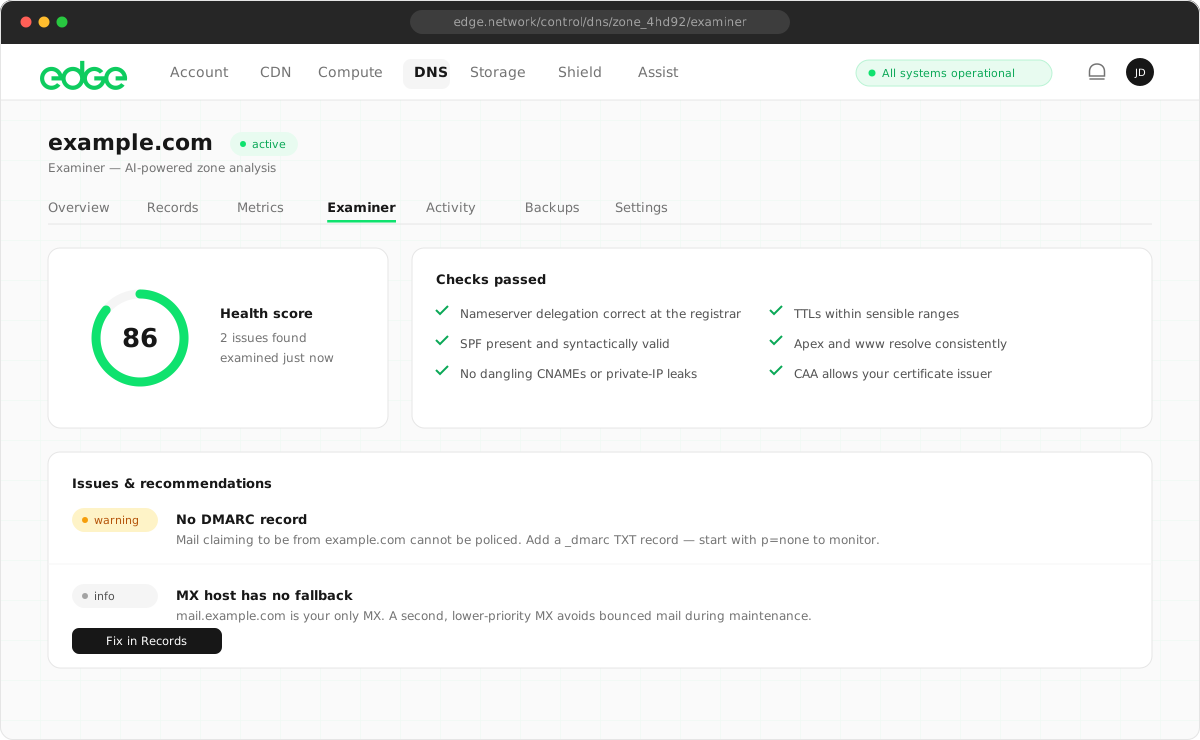
AI-powered zone analysis that checks your DNS configuration for issues across email, security, web and nameserver delegation, then gives you specific fixes.
On this page6 sections
How to use it#
- Open a DNS zone and navigate to the Examiner tab.
- Click Run Examination. The analysis takes up to 30 seconds.
- Review your health score, issues and recommendations. Fix issues directly in the Records tab.
What it checks#
- Email deliverability: validates SPF, DKIM and DMARC records. Checks MX configuration and flags missing or misconfigured email authentication.
- Security: reviews CAA records, checks for overly permissive wildcards and verifies security-related DNS configuration.
- Web accessibility: confirms A/AAAA records resolve, checks for CNAME-at-apex conflicts and verifies
wwwsubdomain setup. - Nameserver delegation: compares live NS lookups against your assigned Edge nameservers and identifies delegation mismatches at your registrar.
- Best practices: audits TTL values, flags duplicate or conflicting records, checks MX priority spread and identifies orphaned entries.
Health score#
Each examination produces a health score from 0 to 100, based on the severity and number of issues found.
| Score | Rating | Meaning |
|---|---|---|
| 80–100 | Good health | No critical issues. Minor improvements may be suggested. |
| 60–79 | Needs attention | Some warnings that should be addressed. |
| 0–59 | Issues found | Critical issues that may affect email delivery, security or availability. |
Issue severity#
Issues are categorised by severity to help you prioritise fixes.
- Critical: issues that directly affect functionality, such as a missing SPF record causing email rejection or a nameserver delegation mismatch.
- Warning: potential problems, such as a missing DMARC policy, no CAA record or suboptimal TTLs.
- Info: suggestions for improvement, such as adding a
wwwCNAME or optimising TTL values.
Saved results#
Examination results are saved automatically. When you return to the Examiner tab, your most recent result is displayed with the date and time it was run. Click Re-run at any time to get a fresh analysis.
CLI#
DNS Examiner is also available via the Edge CLI.
Terminal
# Run an examination
edge dns examine <zone-id>

# View the last result
edge dns examine-last <zone-id>

# Output as JSON
edge dns examine <zone-id> --output jsonSomething unclear or out of date? Tell us