Account & support
Teams
Collaborate with your team by inviting members and assigning roles based on their responsibilities.
On this page9 sections
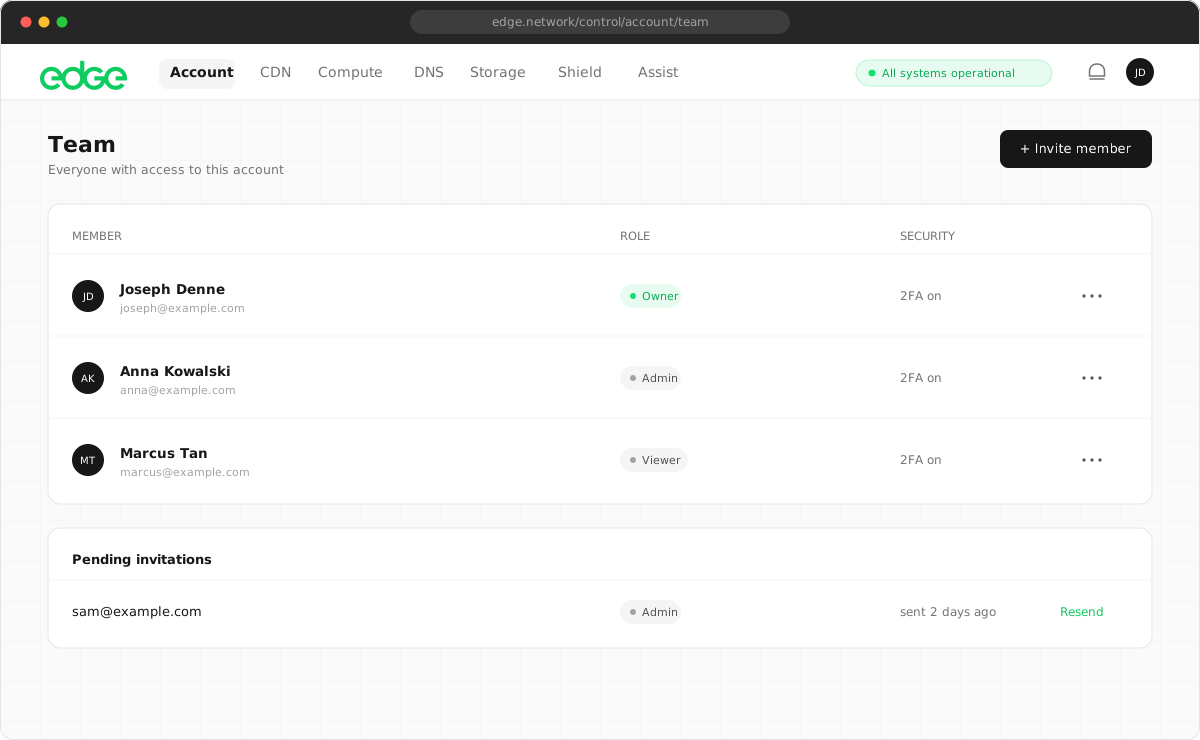
Edge Network’s team features allow you to invite colleagues to your account with specific roles that control what they can access and modify. Small teams and large organisations can both structure access to match their workflow.
Roles and permissions#
Each team member is assigned a role that determines what actions they can perform. Choose the right role based on each person’s responsibilities.
| Role | Description | Resources | Team | Billing |
|---|---|---|---|---|
| Owner | Full access to everything. Can transfer ownership. | ✓ | ✓ | ✓ |
| Admin | Manage resources and team. Cannot access billing or assign Admin/Owner roles. | ✓ | ✓ | ✗ |
| Developer | Create, modify and delete resources. Generate API keys. | ✓ | View only | ✗ |
| Viewer | Read-only access to all resources. Cannot make changes. | View only | View only | ✗ |
Detailed permissions#
Resource permissions#
| Action | Owner | Admin | Developer | Viewer |
|---|---|---|---|---|
| View resources | ✓ | ✓ | ✓ | ✓ |
| Create resources | ✓ | ✓ | ✓ | ✗ |
| Delete resources | ✓ | ✓ | ✓ | ✗ |
| Manage API keys | ✓ | ✓ | ✓ | ✗ |
Team permissions#
| Action | Owner | Admin | Developer | Viewer |
|---|---|---|---|---|
| View team members | ✓ | ✓ | ✓ | ✓ |
| Invite members | ✓ | ✓ | ✗ | ✗ |
| Remove members | ✓ | ✓ | ✗ | ✗ |
| Assign Admin role | ✓ | ✗ | ✗ | ✗ |
| Transfer ownership | ✓ | ✗ | ✗ | ✗ |
Inviting team members#
- Go to team settings. Open Account → Team in your dashboard.
- Click “Invite Member”. Enter their email address and select the appropriate role.
- They accept the invitation. They’ll receive an email with a link to accept. If they don’t have an Edge account, they’ll create one during acceptance.
Accepting an invitation#
When you’re invited to a team, you’ll receive an email with an invitation link.
- Existing Edge users: Log in with your existing account to accept. The team account will be added to your account switcher.
- New users: Create an Edge account using the invitation email address. You’ll be added to the team immediately after signup.
Switching between accounts#
If you belong to multiple accounts (personal and team accounts), you can switch between them easily:
- Click your profile avatar in the top-right corner.
- You’ll see your current account and other available accounts.
- Click any account to switch to it.
The account switcher shows your role in each account and highlights the currently active one.
Managing team members#
- Changing roles: Owners can assign any role. Admins can only assign Developer or Viewer roles. To change a member’s role, click their current role in the team list and select a new one.
- Removing members: Owners and Admins can remove team members. Admins cannot remove other Admins; only the Owner can do this. Removing a member immediately revokes their access to all resources.
- Cancelling invitations: If someone hasn’t accepted their invitation yet, you can cancel it from the team page. This is useful if you invited the wrong email or need to change the role.
Activity tracking#
All team actions are logged in the activity log:
- Member invitations sent
- Invitations accepted or cancelled
- Role changes
- Member removals
This provides a complete audit trail for compliance and security purposes.
Best practices#
- Principle of least privilege: Assign the minimum role needed for each person’s job. Use Viewer for stakeholders who only need to monitor, Developer for those who build, and Admin only for team managers.
- Remove inactive members: Regularly review team members and remove anyone who no longer needs access. This reduces security risk.
- Require 2FA: Encourage all team members to enable two-factor authentication for added security.
- Have multiple Admins: For business continuity, have at least one Admin in addition to the Owner. This ensures someone can manage the team if the Owner is unavailable.
API reference#
Manage team members programmatically using the Edge API.
| Method | Endpoint | Description |
|---|---|---|
GET |
/api/team/members |
List all members of the current account |
POST |
/api/team/members |
Invite a new member (requires Admin+ role) |
PATCH |
/api/team/members/:id |
Update a member’s role |
DELETE |
/api/team/members/:id |
Remove a member from the account |
Something unclear or out of date? Tell us