Managing VMs
Managing virtual machines
Learn how to control, monitor and manage your VMs through the console.
On this page6 sections
VM dashboard#
Click on any VM to open its dashboard. Here you’ll find quick actions, status information and navigation to detailed management pages.
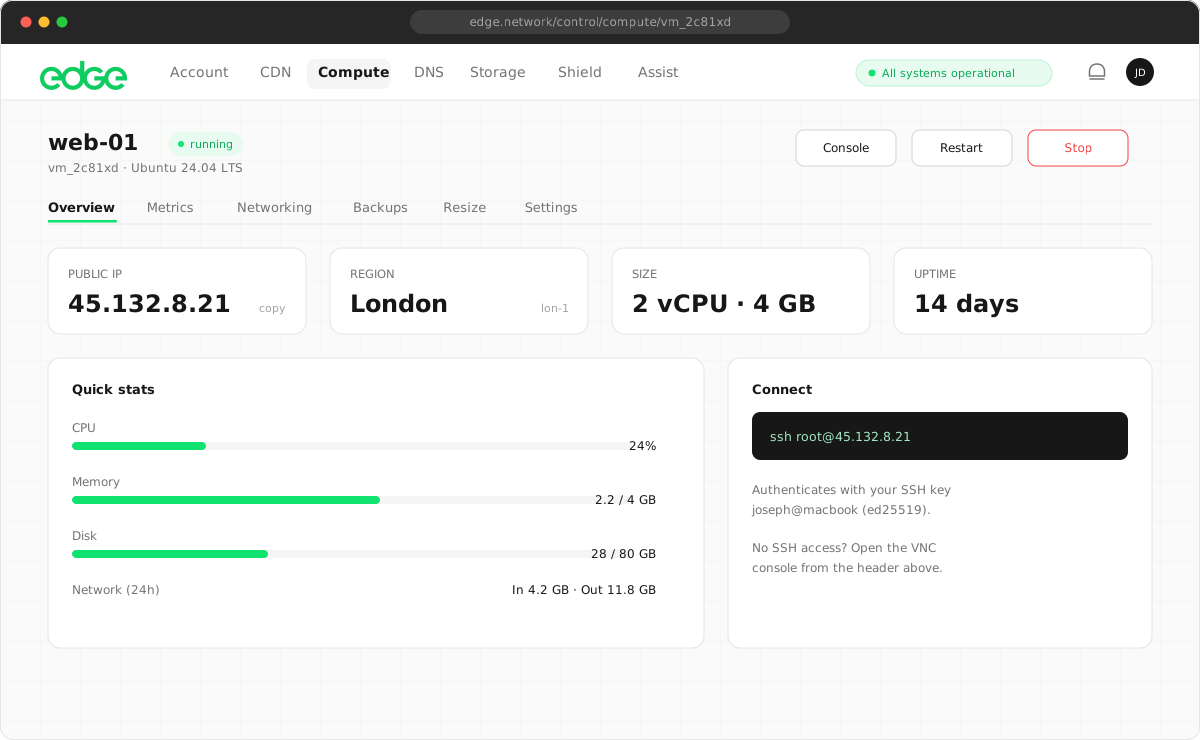
- Overview: quick actions, status and basic VM information
- Metrics: CPU, memory, disk and network graphs
- Networking: IP addresses, bandwidth and private networks
- Firewall: inbound and outbound traffic rules
- Backups: snapshots and restore points
- Resize: adjust CPU, RAM and storage
Power actions#
Control your VM’s power state from the Overview page.
Start#
Boot a stopped VM. The VM starts with its current configuration and disk contents.
Stop#
Gracefully shut down the VM. Stop sends an ACPI shutdown signal, giving the OS time to close applications.
Stopped VMs continue to consume disk storage but not CPU/RAM resources.
Restart#
Reboot the VM. Equivalent to a graceful shutdown followed by a start.
Suspend#
Pause the VM and save its memory state. When resumed, the VM continues exactly where it left off.
Console access#
Access your VM’s console directly from the browser. This is useful when SSH is not available or for troubleshooting boot issues.
- Navigate to your VM’s Overview page.
- Click Console in the quick actions.
- A new window opens with VNC console access.
Resizing a VM#
Adjust your VM’s resources as your needs change. Navigate to the Resize tab to modify CPU, RAM or storage.
- CPU and RAM: can be changed while the VM is running (hot resize) or stopped. A restart may be required for changes to take effect.
- Storage: can be increased at any time, but cannot be decreased. You may need to extend the filesystem inside the VM.
Deleting a VM#
To delete a VM, go to the VM’s settings or use the delete option from the VM list.
- Navigate to your VM’s Overview page.
- Click the Delete button.
- Type the VM name to confirm.
- Click Delete VM.
VM states#
Your VM can be in one of several states:
| State | Description |
|---|---|
| Running | VM is running and accessible |
| Stopped | VM is powered off |
| Starting | VM is booting up |
| Stopping | VM is shutting down |
| Provisioning | VM is being created |
| Error | VM encountered an error (contact support) |
Something unclear or out of date? Tell us