Domains & SSL
Managing domains
Add custom domains to your CDN deployment with automatic SSL certificate provisioning.
On this page9 sections
Adding a domain#
Each domain you add to a deployment needs to be configured with a domain name and an origin source:
- Domain: the domain or subdomain visitors will use (e.g.
cdn.yoursite.com). - Origin type: where the CDN fetches content from:
- External URL: pull content from any HTTP/HTTPS endpoint: your origin server, another cloud provider’s storage, or any web-accessible URL. Example:
https://your-bucket.s3.amazonaws.com. - Storage Bucket: use an Edge Storage bucket as your origin. No external URL is needed: select one of your buckets directly. This suits static assets, images and files. Learn more about Edge Storage.
- External URL: pull content from any HTTP/HTTPS endpoint: your origin server, another cloud provider’s storage, or any web-accessible URL. Example:
DNS configuration#
After adding a domain, you need to configure your DNS to point to Edge CDN.
For subdomains (recommended)#
Add a CNAME record:
cdn.yoursite.com. CNAME cdn.edge.network.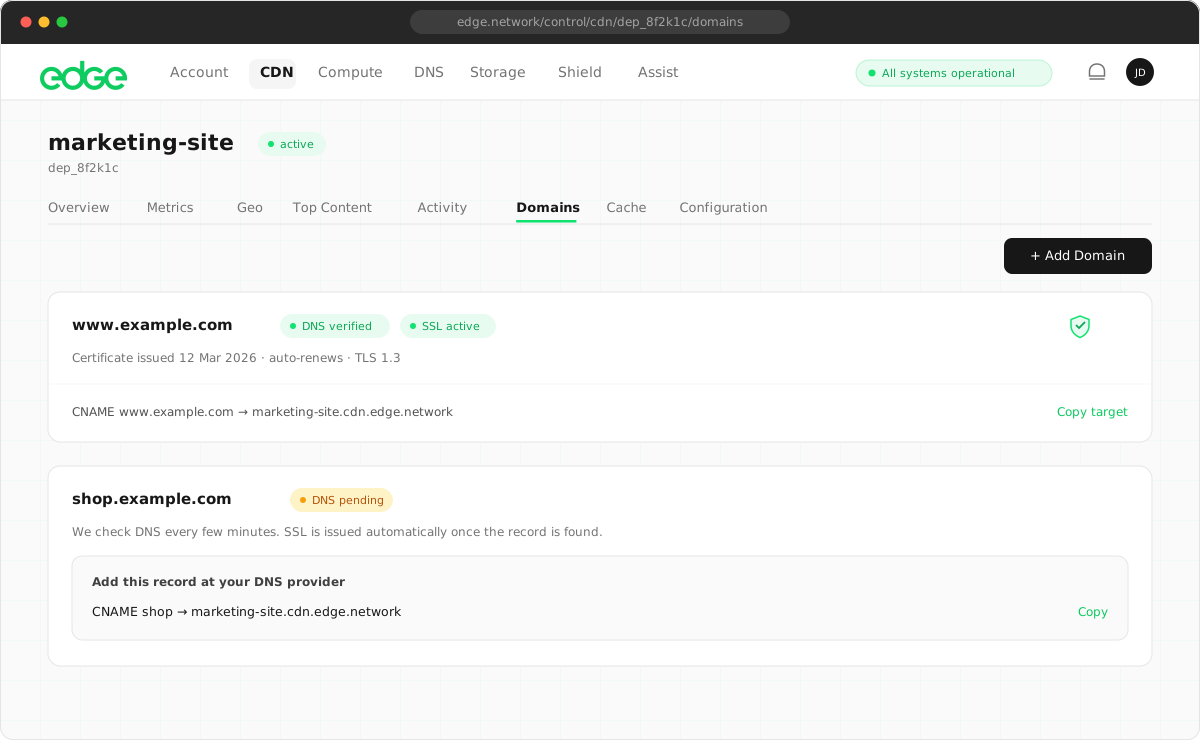
Domain status#
Domains go through several states during setup.
DNS status#
pending: waiting for you to configure DNSverified: DNS is correctly configuredfailed: DNS check failed; verify your CNAME record
SSL status#
issuing...: certificate is being issued (30–60 seconds)active: a valid SSL certificate is in placefailed: certificate issuance failed; check DNS
Automatic SSL certificates#
Edge CDN automatically provisions free SSL certificates for all domains using Let’s Encrypt.
- Free certificates: no cost for SSL; included with every domain
- Auto-renewal: certificates renew automatically before expiry
- Fast issuance: certificates issued in under 60 seconds
- TLS 1.3: modern encryption with the latest TLS version
Editing the domain origin#
You can change the origin for any domain at any time without removing and re-adding it.
- Click the domain row you want to edit.
- The Edit Domain Origin modal opens.
- Select a new origin type (External URL or Storage Bucket).
- Enter the new origin URL or select a different bucket.
- Click Save Changes.
Root path behaviour#
Control what happens when visitors access the root path (/) of your CDN domain directly.
Proxy to origin (default)#
Requests to the root path are proxied to your origin as normal. Use this if your origin has content at its root.
Redirect to URL#
Redirect visitors to a URL of your choice. Useful when your CDN subdomain should redirect to your main site.
- 301 Permanent: for permanent redirects (SEO-friendly, browsers cache it)
- 302 Temporary: for temporary redirects (not cached)
Show Edge info page#
Display a simple branded page identifying the domain as an Edge CDN endpoint. Useful for CDN-only subdomains that shouldn’t be browsed directly.
Password protection#
Any CDN domain can be protected with a username and password (HTTP Basic Auth). Visitors are prompted for credentials by their browser before anything is served. This is useful for sharing a dev build or staging site on a public URL without making it public.
- Open your deployment’s Domains tab.
- Click the lock icon on the domain you want to protect.
- Enable Require a username and password and set the credentials.
- Click Save. Protection is live on the edge within seconds.
- Enforced at the edge: credentials are checked before the cache and origin; protected content is never served without them, not even from cache.
- Hashed storage: passwords are stored as bcrypt hashes; edge nodes never see the plaintext, and failed attempts are naturally rate-limited by the hash cost.
- SSL keeps working: certificate issuance and renewal are exempt from the check, so protected domains still get automatic SSL.
- No performance cost: verified credentials are cached at the edge, so authenticated requests are served at full CDN speed.
Removing a domain#
You can remove a domain from your deployment at any time.
- Click the trash icon next to the domain you want to remove.
- Confirm the removal in the modal.
- The domain and its SSL certificate are removed.
Next steps
Something unclear or out of date? Tell us