Prerequisites#
- A valid email address
- A credit/debit card for trial
- Terminal access (optional)
1. Create your account#
Sign up for Edge Network in under 2 minutes. It’s free and no card is required.
2. Install the CLI#
The Edge CLI is the fastest way to manage your infrastructure. Install it with a single command.
curl -fsSL https://edge.network/install.sh | shiwr https://edge.network/install.ps1 -useb | iexThen verify the installation:
edge --version3. Authenticate#
Log in to your Edge account from the command line.
# Login to your account
edge auth login

# This will open your browser for authentication
# Once complete, you're ready to deploy
4. Deploy your first resource#
Choose a product and deploy in seconds. Here’s how to set up each service.
CDN#
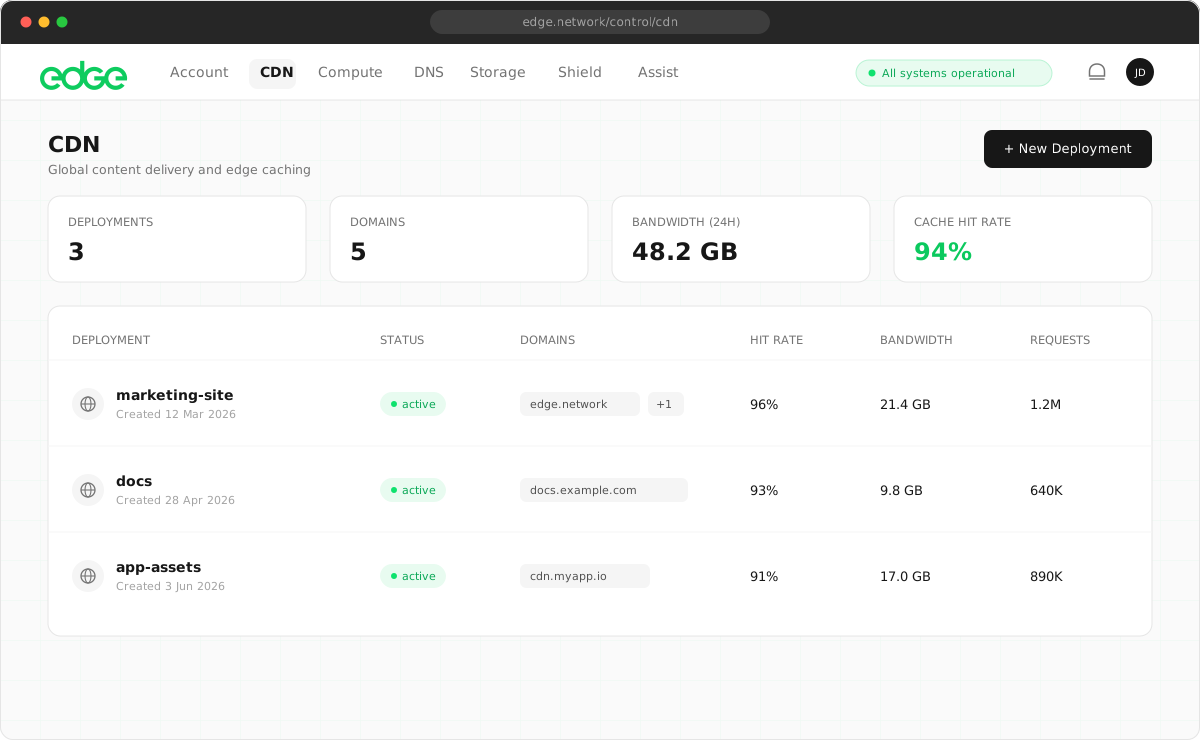
Add your domain and start caching content globally.
# Create a new CDN deployment
edge cdn create --origin https://your-origin.com

# Add a custom domain
edge cdn domains add mysite.com

# Check deployment status
edge cdn listCompute#
Launch a virtual machine in any of our 33 regions.
# List available instance types
edge compute types

# Create a new VM
edge compute create \
  --name my-server \
  --type starter \
  --region eu-west-1 \
  --image ubuntu-22.04

# SSH into your instance
edge compute ssh my-serverDNS#
Set up DNS for your domain with global anycast.
# Add a new zone
edge dns zones create example.com

# Add an A record
edge dns records create example.com \
  --type A \
  --name @ \
  --value 203.0.113.50

# List all records
edge dns records list example.comStorage#
Create an object storage bucket for your files.
# Create a new bucket
edge storage buckets create my-bucket

# Upload a file
edge storage upload ./image.png my-bucket/images/

# Make bucket public (optional)
edge storage buckets update my-bucket --publicShield#
Add free, privacy-first bot protection to any form on your site.
# Create a Shield widget
edge shield create \
  --name my-site \
  --hostname mysite.com

# The sitekey and secret are shown once: store the secret securely

# Check traffic stats
edge shield stats <widget-id>
5. Monitor and manage#
Use the dashboard or the CLI to monitor your deployments.
# View all resources
edge status

# Check usage
edge usage --period month

# View logs
edge logs --service cdn --follow
You’re all set#
You’ve deployed your first resource on Edge Network. From here, you can explore more advanced features, set up monitoring or scale your infrastructure.
Keep learning
Getting started3 min read
Console quick start
From new account to a live, globally delivered site in about ten minutes, entirely from your browser. No terminal or config files needed.
Getting started3 min read
CLI installation
The Edge CLI is the fastest way to manage your infrastructure. Install it in seconds, authenticate, and start deploying.
Getting started4 min read
First deployment
You've got an account and the CLI installed. Now let's deploy something real. Pick your product and follow along.